Hello World from personal site

 Image credit: Unsplash
Table of Contents
Hello World! I’ve been wanting to document my explorations and journey into select topics I’ve been dabbling with. This is my first post on this site and felt it would be very apt to describe the set up of this site.
Overview
This website was built using Hugo. Hugo is a popular open-source static site generator, which simplicity and flexibility is exactly what I needed. There are other website frameworks which are suitable for blogging use cases (eg. ghost), but I felt these were too complicated for my simple requirements.
Let’s jump into the Hugo website setup!
Hugo Website Setup
For a Hugo static site, you can select from a wide range of themes. I went with HugoBlox, combining 2 example sites - theme-resume and theme-blog with some custom tweaks.
Get HugoBlox Theme Go Module
hugo mod init github.com/<your_user>/<your_project>
hugo mod get github.com/HugoBlox/hugo-blox-builder/modules/blox-tailwind
Create package.json (Reference)
hugo mod npm pack
Customise the details on your Hugo site. For Resume page details,
Update content/authors/[name]/_index.md file
And updated the content/_index.md
sections:
  - block: resume-biography ## This refers to a partial layout defined in the go module
    content:
      username: joseph      ## Update this to your [name]
Since my domain kopi.quest (…couldn’t get any other domain name for cheap $$$) is controlled on Cloudflare, I used the Cloudflare Pages to host this website. Followed this guide.
Cloudflare pages will automatically create a site for you, but the domain name may not look too nice (mine was personal-site-ane.pages.dev). It is usable, but since I have a domain, why not use it. Follow this Cloudflare Pages - Custom Domains guide. For me, I created a CNAME record joseph.kopi.quest to point to personal-site-ane.pages.dev.
Notes / Issues
DNS
There was no issues with resolution of joseph.kopi.quest to the hugo site. But I had issues when accessing it when connected to my wifi. I had configured my router to use PiHole DNS (which is deployed on my Kubernetes Cluster) as primary DNS. I have a DNS record on PiHole which directs *.kopi.quest to my nginx ingress IP address in the Kubernetes Cluster, hence accessing joseph.kopi.quest always resolves an invalid endpoint.
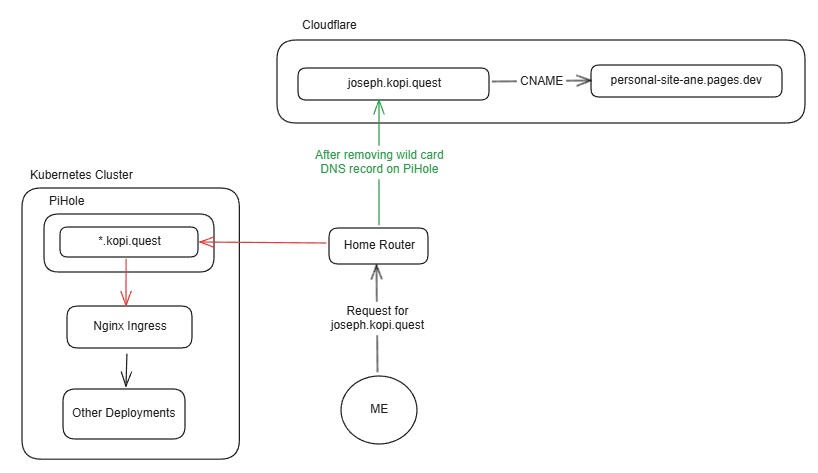
Figure 1: DNS Resolution Flow
Overriding HugoBlox Partial Layouts
I wanted to override the default icon on the resume page to use company icon. Leveraging on the Hugo Template Lookup Order, it is possible to override the partial layouts provided by the theme, in my case, the HugoBlox Go Module.
Go Module installed is github.com/HugoBlox/hugo-blox-builder/blob/main/modules/blox-tailwind
Assuming partial layout in the Go Module is located at https://github.com/HugoBlox/hugo-blox-builder/blob/main/modules/blox-tailwind/layouts/partials/blox/resume-experience.html
Create a file layouts/partials/blox/resume-experience.html in your Hugo site. This will take priority over the one provided by the Go Module.
Conflicting Styles in .svg files
Taking the aws svg icon I downloaded.
<style type="text/css">
	.st0{fill:#252F3E;}
	.st1{fill-rule:evenodd;clip-rule:evenodd;fill:#FF9900;}
</style>
This conflicted with another svg file I was using, changing to the same color.
This is fixed by specifying the id #aws-svg
<style type="text/css">
	:root {
		--aws-primary: #252F3E;
	}

	:root.dark {
		--aws-primary: #ffffff;
	}

	#aws-svg .st0{fill: var(--aws-primary);}
	#aws-svg .st1{fill-rule:evenodd;clip-rule:evenodd;fill:#FF9900;}
</style>
Additionally, to be compatible with the light and dark modes, there was a need to update the color on the svg icon based on the mode. :rootis for light mode and :root.dark is for dark mode.